
This guide offers tips for managing a busy inbox or handling a large volume of emails.
Generally, there are two types of people: filers and pilers.
- Filers organize emails into specific folders for different topics.
- Pilers keep all emails in their Inbox and hope for the best.
To manage tasks, use Categories and Follow Up Flags.
With a crowded inbox, finding emails can be tough. Outlook’s search helps, and organizing emails into folders makes searches more efficient.
Here is what my favourites Outlook folder list looks like:
See all those folders with the magnifying glass picture on them? Those are my Search Folders. Details of each folder below:
Inbox (To be vetted)
All new emails appear here. I review them regularly, take immediate action if needed, or categorize them to follow up today, tomorrow, or later in the week.
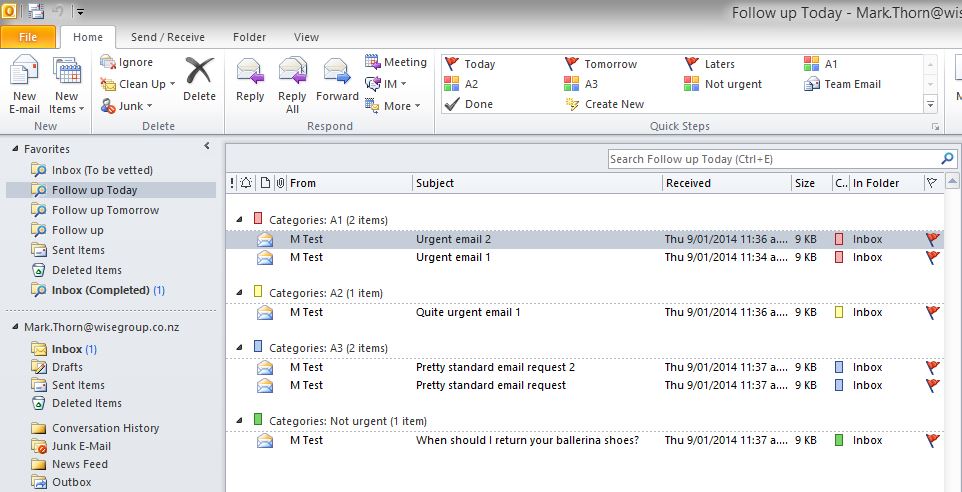
Follow up today
This is my main folder for emails I've flagged and categorized for follow-up today. I use a few categories: A1, A2, A3, and Not urgent. The folder is sorted by category, so I see only the emails I need to respond to, prioritized. When I finish an email, I click Done and it disappears from this folder (but stays in my Inbox). Once all follow-ups are complete, my Inbox is empty—such a great feeling!
Follow up Tomorrow
Same as "Follow up today," but flags emails for tomorrow's date.
Follow up
Shows all emails flagged for follow up, regardless of date. Use this to see your total pending actions.
Inbox (Completed)
Displays all emails in your Inbox marked as Done.
If this setup works for you, read on to learn how to set it up. It takes about 15 minutes and you only need to do it once.
Set up the Search Folders
Start by creating these five Search Folders:
Inbox (to be vetted)
- Right-click Search Folders > New Search Folder.
- Select "Create a custom Search Folder."
- Click Choose to set criteria.
- Name it "Inbox (to be vetted)."
- Click Browse, select only Inbox, uncheck subfolders.
- Click OK, then Criteria > More Choices tab.
- Set "Only items which" to "no flag."
- Click OK three times to save.
Inbox (completed)
- Repeat steps above, name it "Inbox (completed)."
- In Criteria, go to Advanced tab.
- Set Field to Flag Status, Condition to "equals," Value to "Completed."
- Click Add to list, then OK three times to save.
Follow up today
- Create a custom Search Folder named "Follow up today."
- In Criteria > Advanced tab:
- Set Field to Due Date, Condition "on or before," Value "[today]" (include brackets), Add to list.
- Set Field to Flag Status, Condition "not equal to," Value "Completed," Add to list.
- Click OK three times to save.
Follow up tomorrow
- Create a custom Search Folder named "Follow up tomorrow."
- In Criteria > Advanced tab:
- Set Field to Due Date, Condition "on," Value "[tomorrow]" (include brackets), Add to list.
- Set Field to Flag Status, Condition "not equal to," Value "Completed," Add to list.
- Click OK three times to save.
Follow up
- Create a custom Search Folder named "Follow up."
- In Criteria > Advanced tab:
- Set Field to Flag Status, Condition "not equal to," Value "Completed," Add to list.
- Click OK three times to save.
Add Search Folders to Favorites
Drag your new Search Folders to your Favorites for quick access and arrange as you prefer.
Set up your Categories
In the Ribbon, click Categories > All Categories. Create your preferred categories (e.g., A1, A2, A3, Not urgent) or adjust as needed.
Set up your Quick Steps
Quick Steps are customizable buttons in the Ribbon for fast actions. To set up:
- Click the dropdown in Quick Steps > New Quick Step - Flag and Move.
- Name it "Today," set Flag to Today, uncheck Move to folder. Click Finish.
- Repeat for "Tomorrow" (Flag: Tomorrow), and "Later" (Flag: This Week).
- For categories, choose New Quick Step - Categorize and Move, name it (e.g., A1), select the category, uncheck Move to folder. Repeat for each category.
Finally, set Outlook to start in your "Inbox (to be vetted)" Search Folder: File > Options > Advanced > Outlook Start and Exit > Browse to select your Search Folder.
That’s it! Once set up, this system will help you manage large volumes of email efficiently. Share your email management tips or questions in the comments below.
Comments
Thanks Mark have it setup now, easy to follow steps. Will let you know how I find it after I have used it for awhile.
Cheers,
Derryn
Hi Mark, Great info and I will get on with these folders. I'm sure it will make life easier.
regards
Angela Christoffersen
This is a great article!! Thanks for the great tips
No worries Moana! Hopefully it helps.
Please sign in to leave a comment.